 English
 Italian
 Spanish
 Turkish
 Portuguese
 Dutch
Dutch Korean
 Russian
 French
 German
 Polish
 Arabic
 Hindi
HindiWhy Does Software Compatibility Matter for Wall Mounted Touch Screen Displays?
A wall mounted touch screen display may look like a display product, but the screen itself is only one part of the system. Once touch interaction is added, software compatibility becomes closely tied to the way the equipment will be used.
A retail store may need a product catalog and inventory system. A school may run presentation software, teaching applications, or browser-based platforms. A showroom may need videos, product information, and interactive content on the same screen. Public facilities can have completely different requirements, such as directories, maps, service information, or self-service functions.
For project buyers, choosing the right panel size and display specifications is only the beginning. The operating system, application environment, touch input, external devices, screen resolution, and software update method all need to work together.
The Display Hardware Does Not Decide Whether an Application Will Run
Two touch displays can have almost identical screen specifications while offering very different results after installation.
A 55-inch panel with 1920×1080 resolution, for example, may work well for a simple information display. Add an interactive product catalog, a Windows-based application, a USB peripheral, or a browser platform, and the system requirements become much more specific.
The operating system plays a major role.
For projects using standard business software, Windows can be a better fit because many existing desktop applications are developed for Windows environments. Android can be more suitable for projects built around mobile-style applications, web content, media playback, and simpler interactive interfaces.
Neither system should be treated as the universal choice.
A project that already has software should start with the software requirements rather than choosing the operating system based only on the hardware specification sheet.
For example:
Project requirement | More suitable direction |
Existing Windows desktop software | Windows |
Android application or APK | Android |
Browser-based information system | Android or Windows, depending on the platform |
Office software and desktop tools | Windows |
Digital catalog and media playback | Android or Windows |
Custom business application | Confirm system requirements first |
External USB devices | Check driver and OS compatibility |
For OEM or project orders, we normally recommend testing the actual application on the intended configuration before confirming the final batch. A specification sheet can tell you the processor, memory, resolution, and ports. It cannot tell you whether a particular application will behave correctly.
Android or Windows? Start With the Application
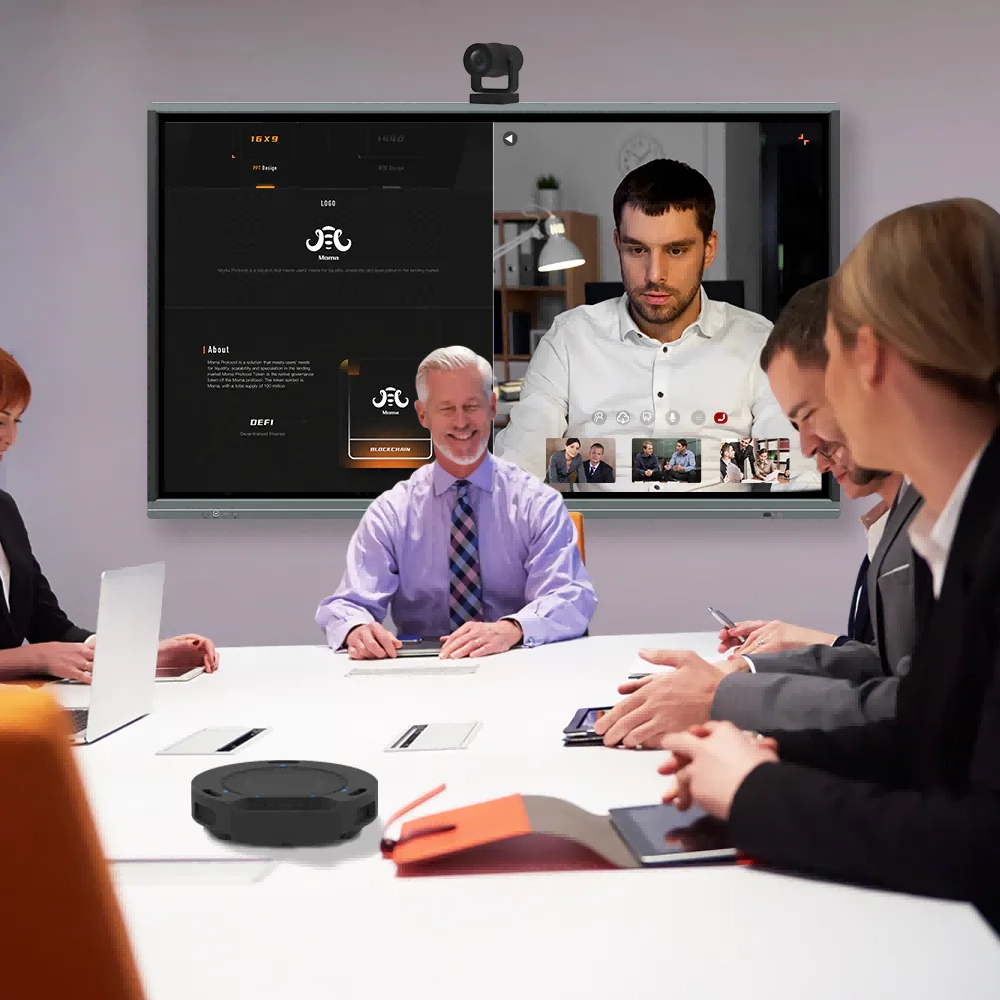
The Android-versus-Windows decision often appears early in a purchasing discussion. The better question is what the display needs to run.
Suppose a retailer wants a wall mounted interactive display for product browsing. If the interface is based on an Android application, there may be little reason to add a Windows environment simply because it is familiar to the IT team.
A different project may already use a Windows-based management application across desktop computers. In that case, moving the software to Android could create unnecessary development or compatibility work.
There can also be differences in peripheral support.
Barcode scanners, printers, cameras, USB storage devices, keyboards, mice, and other accessories may require specific drivers or connection methods. A touch display can have the necessary physical ports, yet the connected device may still require software support that the selected operating system does not provide.
For procurement teams, the operating system should therefore be treated as part of the project configuration rather than an isolated hardware option.
Screen Resolution Affects the Software Interface Too
Resolution is often discussed from an image-quality perspective. For interactive displays, the issue goes further.
The software interface needs to fit the actual display resolution and aspect ratio. Poorly adapted content can produce small buttons, crowded menus, stretched images, or excessive blank space.
The FVASEE wall mounted touch screen display uses a 1920×1080 Full HD display configuration. For applications developed specifically around a 16:9 interface, that provides a familiar working format across the available screen sizes.
The physical screen becomes larger as the model moves from 42/43 inches to 65 inches, while the resolution remains 1920×1080. That distinction matters when preparing an interface.
A larger physical panel does not automatically provide more software workspace.
If the application is designed with small interface elements, a 65-inch screen may still be inconvenient for users standing at a normal operating distance. Buttons and navigation areas need to be sized for touch use rather than simply copied from a desktop monitor.
For project deployment, we suggest checking:
· Native screen resolution
· Aspect ratio
· Interface scaling
· Font size
· Button dimensions
· Video and image proportions
· Browser compatibility
· Full-screen behavior
· Portrait or landscape layout requirements
A quick test on a desktop monitor is useful, but testing on the actual touch display gives a much more reliable result.
Touch Input Needs to Match the Software
A touch display does more than show software. It sends user input back to the application.
That interaction can involve tapping, scrolling, dragging, zooming, selecting items, entering information, or operating several touch points at the same time.
The software needs to recognize those actions correctly.
FVASEE provides infrared and capacitive touch options for the wall mounted display. The choice depends on the project configuration and the expected interaction method.
For a simple menu or information directory, basic touch operations may be enough. A classroom application or interactive product catalog may require more responsive multi-point interaction.
There is another detail that can be overlooked: the application itself must support the touch gestures being used.
A touch panel can detect a gesture correctly, but if the software was designed around mouse clicks only, the user experience will still be poor.
Before mass production, it is useful to test the complete operation:
1. Open the intended application.
2. Tap common navigation buttons.
3. Scroll through long pages.
4. Select products or information.
5. Test multi-point operations where required.
6. Enter text if an on-screen keyboard is needed.
7. Connect external devices used by the software.
8. Run the system continuously for an extended period.
Hardware testing and application testing should be treated as one process.
Browser-Based Applications Need Their Own Compatibility Check
A growing number of commercial systems run through browsers rather than dedicated desktop applications.
That can simplify deployment, but browser compatibility still needs attention.
Different operating systems and browser versions may handle web applications differently. A page that looks correct on a laptop may require layout adjustments on a large wall display.
Touch scrolling is another consideration. Hover-based menus, small clickable areas, pop-up windows, and desktop-oriented navigation can become difficult to operate from a standing position.
For a browser-based project, the test should cover more than whether the homepage opens.
Check the complete user path.
Can users reach the required page? Do buttons respond properly to touch? Does video playback work? Do pop-up windows stay within the visible area? Does the page scale correctly at 1920×1080? Can users return to the previous page without a keyboard or mouse?
These details often determine whether the final installation feels polished or awkward.
Software Updates Should Be Considered Before Installation
A display may remain on a wall for several years. Software rarely stays unchanged for that long.
Applications are updated. Browser versions change. Content gets replaced. Network systems are modified. Security policies can also affect the way a device connects to external services.
For that reason, the software update process should be discussed during the purchasing stage.
There are several possible approaches:
· Manual update by USB
· Local network update
· Remote software management
· Browser-based content management
· Application update through the selected operating system
· On-site maintenance by technical staff
The right method depends on the project size.
A single display in a showroom may be easy to maintain manually. A retail chain with dozens or hundreds of wall mounted interactive displays has a different requirement. Sending technicians to every location for a small software update quickly becomes inefficient.
Large deployments should therefore consider how content and applications will be maintained after installation, not only how they will be installed on day one.
External Devices Can Change the Configuration
A touch display rarely works completely alone in a commercial project.
Depending on the application, customers may connect:
· USB keyboards
· Mice
· Barcode scanners
· Printers
· Cameras
· Speakers
· Storage devices
· Network equipment
· POS-related peripherals
· Other USB or serial devices
The physical interface is only the first check.
The selected mainboard, operating system, driver environment, and application need to support the connected equipment.
For example, a self-service ordering system may need a printer. A retail product lookup system may use a barcode scanner. An educational application may require a camera or external audio equipment.
A project specification should therefore include the complete connection chain instead of listing the touch display separately from the peripherals.
Item to verify | What to check |
USB device | Port type, driver, OS support |
Printer | Driver, application compatibility, connection method |
Camera | Driver and application recognition |
Network | Ethernet/Wi-Fi requirements |
Audio | Speaker output and software support |
Storage | Capacity and access method |
Touch input | Touch protocol and application response |
A short compatibility test before production can prevent much more expensive changes after installation.
Custom Configuration Is Often More Useful Than a Standard Setup
Commercial projects rarely have identical software requirements.
One customer may need Android with a specific application. Another may need Windows and several USB peripherals. A third may only require a browser and local media playback.
For that reason, wall mounted touch screen displays used for project orders may require configuration around the actual application environment.
The processor, memory, storage, operating system, ports, and touch technology can be evaluated together rather than selected independently.
For an OEM/ODM project, a sample unit is particularly useful.
The sample should use the same or equivalent configuration planned for the production batch. Install the actual application and test the complete workflow. Once the customer confirms the sample, the approved configuration can become the reference for mass production.
That process also helps reduce configuration differences between units.
Why Testing One Complete Unit Before a Bulk Order Matters
Bulk orders introduce another layer of risk.
A software issue that affects one device may affect every unit produced with the same configuration. Finding the problem after shipment can involve reinstalling software, changing settings remotely, returning equipment, or arranging on-site service.
A pre-production test is much cheaper.
For a typical project, the approval process can cover:
Hardware → Operating System → Application → Touch → Peripheral → Network → Content → Long-Term Operation
Each stage depends on the previous one.
The display needs to boot correctly. The operating system needs to support the application. The application needs to recognize touch input. External devices need to communicate correctly. Network functions need to remain stable. Content needs to fit the screen. The complete system should then run for an appropriate test period.
A product sample that only demonstrates image quality does not provide enough information for an interactive deployment.
Software Compatibility Also Affects the User Experience
Technical compatibility is the first requirement. User experience comes next.
A system can technically run an application and still be uncomfortable to use.
Imagine a 55-inch wall mounted touch screen displaying a desktop application designed for a 14-inch laptop. The software may open normally, but menus could be too small, text may be difficult to read, and users may need to reach across the screen repeatedly.
The same issue can occur with websites.
A page built around mouse movement and hover menus may work well on a computer but become frustrating on a touch screen.
Good interactive content usually takes the physical installation into account.
For wall-mounted equipment, users may stand several feet away from the display. The interface should provide clear navigation, readable text, appropriately sized touch targets, and a simple route back to the main screen.
The hardware cannot solve a poorly designed interface by itself.
Software Requirements Should Be Written Into the Purchase Specification
One of the easiest ways to avoid misunderstandings is to include software requirements in the technical specification.
A purchase document can specify:
· Screen size
· Resolution
· Brightness
· Touch technology
· Operating system
· Processor requirements
· Memory and storage
· Required ports
· Application name and version
· Browser requirements
· External peripherals
· Network requirements
· Screen orientation
· Sample approval requirements
· Software installation requirements
· Update and maintenance method
For a basic signage project, the software section may be short.
For an interactive system, it should be much more detailed.
The supplier and buyer can then work from the same configuration rather than relying on phrases such as “Android touch display” or “Windows interactive screen,” which leave many technical details open.
What Should Be Confirmed Before Ordering?
For project customers, software compatibility is best checked before the hardware configuration is finalized.
A useful checklist includes:
1. What software will run on the display?
Identify the actual application, platform, or website rather than describing it only as “interactive software.”
2. Which operating system does it require?
Confirm Android, Windows, or another required environment.
3. What resolution and screen orientation does the interface support?
Check 1920×1080 compatibility and whether the application needs landscape or portrait operation.
4. Does the software support touch operation?
Test tapping, scrolling, dragging, multi-touch, and text input where required.
5. Are external devices required?
List scanners, printers, cameras, keyboards, storage devices, and other peripherals.
6. Does the system require internet access?
Check Wi-Fi or wired network requirements, browser access, server connections, and authentication.
7. How will the software be updated?
Decide whether updates will be performed locally, remotely, manually, or through a management platform.
8. Can the supplier provide a sample for testing?
For larger projects, sample approval should preferably happen before production.
These checks take relatively little time compared with solving compatibility problems after delivery.
Choosing a Wall Mounted Touch Screen Display From the System Outward
A wall mounted touch screen display should be selected around the complete application environment, especially for commercial and institutional projects.
Screen size, resolution, brightness, IPS panel performance, touch technology, operating system, ports, and software compatibility all contribute to the final result. No single specification can guarantee that an interactive system will work properly.
FVASEE offers wall mounted touch screen displays in 42/43-inch, 49/50-inch, 55-inch, and 65-inch configurations, with Android or Windows options and infrared or capacitive touch according to project requirements. The standard display resolution is 1920×1080, with IPS technology, a 178° viewing angle, and brightness of at least 350 cd/m².
For a standard display project, the specification sheet may be enough to begin the discussion. For an interactive project, the software should be brought into that discussion from the start.
The most reliable approach is to define the application, confirm the operating environment, test the complete configuration, approve a sample, and then move to bulk production.
For project-specific configuration or software compatibility requirements, contact the FVASEE sales team to discuss the actual application and hardware setup.