English
 Italian
 Spanish
 Turkish
 Portuguese
 Dutch
 Korean
 Russian
 French
 German
 Polish
 Arabic
 Hindi
How to Set Up a Portable Smart TV for Console and Cloud Gaming
A gaming setup does not always need to stay in one room. Some people prefer playing console games in the living room, while others want a screen they can move between the bedroom and home office. For households with limited space, having a separate television or monitor for every activity is not always practical.
A portable smart TV offers another way to arrange home entertainment. With a rolling stand and built-in smart functions, it can serve as a screen for console games, supported cloud gaming services, and mobile content. The same display can also be used for watching videos or accessing other entertainment applications when the gaming session is over.
The setup itself is fairly straightforward, but the connection method depends on the gaming device. A PlayStation or Xbox needs a suitable video input, cloud gaming relies on compatible applications and a stable network, and mobile gaming may use wireless screen mirroring. Knowing these differences makes it easier to build a setup that works without unnecessary accessories or connection problems.
Choosing the Right Gaming Setup for Your Devices
Before connecting anything, think about how you normally play games. Someone who owns a PlayStation will have different requirements from someone who mainly plays mobile games or uses a cloud gaming service.
Gaming method | What you need | Main consideration |
Console gaming | PlayStation, Xbox, or another compatible console | Video input and supported display resolution |
Cloud gaming | Compatible smart display or streaming device | Service availability, network stability, and controller support |
Mobile gaming | Smartphone or tablet | Screen mirroring compatibility and wireless delay |
PC gaming | Desktop or laptop | Video connection and supported display specifications |
For most console users, a wired connection is the most direct option. Cloud gaming involves more network-related considerations, while mobile screen mirroring is convenient for casual games and shared viewing.
A portable gaming setup does not have to be complicated. The goal is to connect the devices you already use and make the screen comfortable to play on.
Connecting a Portable Smart TV to a PlayStation or Xbox
Console gaming is one of the most straightforward ways to use a portable smart TV. If the display has a compatible video input, it can work as an external screen for a supported gaming console.
This arrangement is particularly useful for people who do not want a permanent gaming station. The console can remain in one place while the display is moved to a more convenient viewing position, as long as the required cables and power supply are available.
Check the available ports first
Before connecting a PlayStation or Xbox, take a look at the connection interfaces on the portable smart TV. HDMI is commonly used by modern game consoles, but the available ports and supported video formats vary between display models.
A few details are worth confirming:
l Whether the display has an HDMI input rather than only an HDMI output.
l Which resolutions the input supports.
l Whether the supported refresh rate meets your gaming requirements.
l How audio is delivered through the display or external equipment.
l Whether any additional adapter is needed.
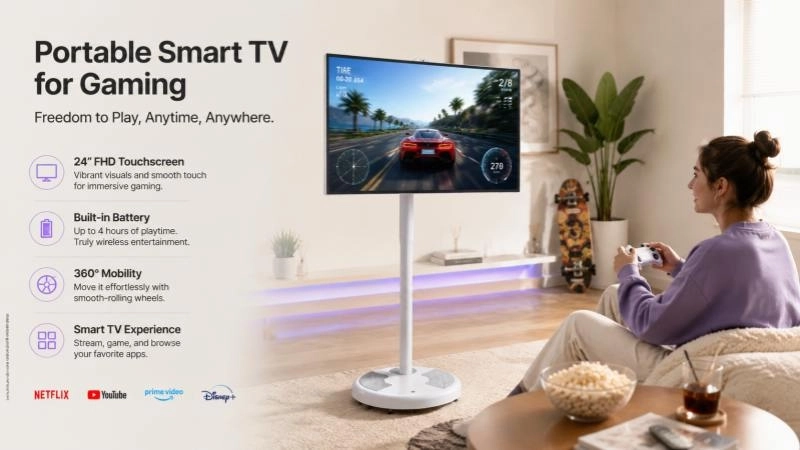
This is particularly relevant when searching for a portable TV for PS5 or Xbox. The product's smart operating system does not automatically guarantee console compatibility. A suitable video input is still required.
Connect the console and select the input source
Once the connection has been confirmed, place the portable smart TV where you plan to play. Connect the console to the display using the appropriate cable, switch on both devices, and select the corresponding input source from the TV menu.
The console interface should appear when the connection is working correctly. If the screen remains blank, check the cable connections and make sure the correct input has been selected. It is also worth checking whether the console is outputting a resolution supported by the display.
There is no need to adjust every setting immediately. Getting a stable picture and sound should come first.
Adjust the display for gaming
After the console is connected, review its display settings. Choose a resolution supported by the portable smart TV and avoid selecting a higher output mode that the display cannot handle.
Refresh rate is another specification that deserves attention. Some players are comfortable with standard display performance, while those who play fast-paced games may have more demanding expectations. The console's output settings, the display's native refresh rate, and the connection all influence the final result.
Sound should not be overlooked either. Test the built-in speakers before starting a longer session. If headphones or external speakers are preferred, confirm that the required audio connection is available.
The setup should feel natural once the screen height, viewing distance, and seating position are adjusted.
Using a Portable Smart TV for Cloud Gaming
Cloud gaming offers a different experience from playing through a physical console. Games run on remote servers, and the video is streamed to the user's device over the internet. Player commands are sent back through the network.
For people who want to play without keeping a console beside the screen, this can be an appealing option. A portable smart TV may provide access to cloud gaming through a compatible application, supported browser, or external streaming device.
However, Android-based smart functionality does not mean every cloud gaming platform is available on every model.
Application compatibility comes first
Check whether the cloud gaming service you intend to use supports the display's operating system and software version. Some platforms offer dedicated applications, while others may require a supported browser or separate streaming device.
Regional availability also matters. A service that works in one country may not offer the same access in another. Account requirements, subscription plans, and supported controllers can differ as well.
For this reason, it is better to confirm the gaming platform's requirements before choosing a display specifically for cloud gaming.
A stable network makes a real difference
Cloud gaming depends heavily on network quality. An unstable Wi-Fi connection can lead to buffering, reduced image quality, or delayed controls. Even when the display itself is working properly, network conditions can affect the entire experience.
A few simple adjustments can help. Keep the display within reliable Wi-Fi coverage and avoid placing the router behind large obstacles where possible. If several devices are using the network heavily at the same time, cloud gaming may become less stable.
Internet speed is only part of the picture. Network congestion, wireless interference, and the distance between the user and the gaming service's servers can also affect performance.
For a more reliable experience, check the service provider's recommended network requirements and test the connection in the room where the portable smart TV will normally be used.
Make sure your controller works with the service
A controller may connect to the TV through Bluetooth or another supported method, but pairing alone does not guarantee that every game will recognize it.
Some cloud gaming services have their own lists of supported controllers and devices. Check those requirements before purchasing additional accessories. Once connected, test the controls in the game or service interface to make sure everything responds as expected.
Cloud gaming can make a portable smart TV more versatile, particularly for casual players who want to switch between games and regular streaming content. The experience still depends on the combination of display, application, controller, and network.
Playing Mobile Games on a Bigger Screen
Mobile games are convenient because they are always within reach, but a smartphone screen can feel restrictive when several people want to watch or play together.
Wireless screen mirroring provides another option. A compatible smartphone or tablet can share its screen with a portable smart TV, allowing mobile content to appear on a larger display.
The process usually starts by connecting the phone and TV through a supported wireless display or casting function. Depending on the devices involved, they may need to be connected to the same Wi-Fi network. The user then selects the available display from the phone's casting menu and confirms the connection if required.
The exact steps vary between Android and iOS devices, so it is worth checking the instructions for both products.
Is wireless screen mirroring suitable for gaming?
It depends on the type of game.
Puzzle games, turn-based games, and casual titles are generally more forgiving when it comes to response time. A larger screen can also make mobile gaming more enjoyable when family members or friends are watching.
Fast-paced games are a different matter. Wireless mirroring can introduce additional delay between a touch on the phone and the image appearing on the TV. The amount of delay depends on the phone, wireless network, display, and casting method.
For games that require quick reactions, playing directly on the phone may still be the better choice. Screen mirroring is best viewed as a convenient way to share mobile content rather than a guaranteed replacement for a dedicated gaming connection.
Finding a Comfortable Screen Position
One of the main reasons people consider a portable smart TV is the freedom to change where they watch. A traditional television usually stays on a cabinet or wall, while a portable model with a rolling stand can move between suitable indoor spaces.
This flexibility can be useful in homes where the same room serves several purposes.
In a living room, the display can be positioned near the sofa for console gaming and moved aside when more floor space is needed. In a bedroom, a smaller screen may provide a personal gaming and entertainment area without taking up a large amount of furniture space.
A home office can also serve as a temporary gaming corner after work. The display can be repositioned when needed, rather than leaving a separate monitor or television permanently installed.
Which screen size works best?
FVASEE portable smart TV options include 21.5-inch, 24-inch, 27-inch, and 32-inch configurations. The right size depends on how far away the player sits and whether the screen is intended for individual or shared viewing.
Screen size | Suitable arrangement | What to consider |
21.5-inch | Compact bedroom or personal gaming corner | Works better for closer viewing |
24-inch | Desk area and individual entertainment | Balances screen space and compact placement |
27-inch | Mixed gaming and everyday viewing | Offers a larger viewing area while remaining portable |
32-inch | Living room and shared entertainment | Requires more space and a suitable viewing distance |
A larger screen is not automatically the better choice. For someone sitting close to the display, a compact model may be more comfortable. When several people are watching together, a larger screen may make more sense.
The rolling stand is equally important. Check the height adjustment, tilt, stability, and wheel design. Selected FVASEE configurations may also offer screen rotation or other adjustment options, depending on the model.
Before moving the display, make sure the cable arrangement is safe and the stand can move freely. This small habit helps prevent cables from becoming tangled around the wheels.
Getting the Details Right: Audio, Controllers, and Cables
A portable gaming setup often looks simple in product photographs, but everyday use depends on a few details that are easy to overlook.
Audio arrangement
Start with the built-in speakers and see whether they provide enough volume for the room. For private gaming, headphones may be more convenient. Users who prefer external speakers should confirm the available audio outputs and supported connection methods.
Controller connection
Console controllers normally connect to the console itself. Cloud gaming controllers may need to connect to the TV, streaming device, or another supported device. These are different arrangements, so follow the instructions for the actual gaming source.
Cable management
A rolling stand makes it easier to reposition the screen, but loose cables can limit movement. Keep the power and video cables away from the wheels and walking paths. If the display needs to move to another room, disconnect the cables before moving it and reconnect them once it is in position.
Power supply
Some portable smart TV configurations may offer built-in battery options. This can provide more flexibility when choosing a screen position, but battery availability and operating time depend on the model. Buyers who specifically need battery power should confirm the configuration before ordering.
Common Problems During Setup
Most setup problems can be traced to the connection, device compatibility, or network rather than the screen itself.
What happens | Possible reason | What to try |
The console screen does not appear | Wrong input source or unsupported output setting | Check the cable, input selection, and console resolution |
Cloud games keep buffering | Unstable Wi-Fi or network congestion | Improve signal strength and test the connection |
The controller cannot connect | Unsupported device or incorrect pairing method | Check the service's controller requirements |
Mobile games feel delayed | Wireless mirroring latency | Test another connection method or play directly on the phone |
There is no sound | Incorrect audio output or muted settings | Review volume and audio connections |
The screen is uncomfortable to watch | Poor viewing distance or screen height | Adjust the stand and reposition the display |
When something goes wrong, check one part of the setup at a time. For example, if a console has no picture, start with the cable and input source rather than changing unrelated smart TV settings.
If the issue continues, refer to the manuals for the display and connected device. Different models may use different menus and connection procedures.
What to Consider When Buying a Portable Smart TV for Gaming
The right portable smart TV depends on the gaming devices you plan to connect and how the screen will be used outside gaming sessions.
For console players, video input compatibility, supported resolution, refresh rate, and audio connections are important. Cloud gaming users should pay more attention to the operating system, application availability, network support, and controller compatibility. For mobile gaming, the supported wireless casting method and possible latency deserve closer consideration.
The physical design also affects daily use. Screen size, stand stability, height adjustment, and movement between rooms all influence whether the display fits the intended space.
For distributors and OEM/ODM buyers, the evaluation may need to go further. Hardware configuration, regional software requirements, optional battery versions, touchscreen availability, packaging, and branding can all affect the final product specification.
A clear model-by-model specification sheet is more useful than a general product description. It helps buyers distinguish standard features from optional configurations and reduces misunderstandings during purchasing.
A More Flexible Way to Enjoy Gaming at Home
A portable smart TV brings several types of entertainment into one movable display. Console gaming offers a direct connection when the required video input is available. Cloud gaming provides access to supported streaming services, while mobile screen mirroring makes it easier to share games and other content on a larger screen.
The best setup depends on the gaming source, network conditions, display specifications, and room arrangement. A little preparation before connecting the devices can save time and help avoid compatibility problems later.
FVASEE portable smart TVs are available in different screen sizes and configurations, with features such as rolling stands, smart system functions, wireless connectivity, and selected optional features. For buyers comparing a portable gaming setup, the most suitable configuration should match the devices, applications, and viewing environment involved.
For detailed information about display specifications, connection interfaces, stand options, and OEM/ODM configurations, contact the FVASEE team to discuss your requirements.