 English
 Italian
 Spanish
 Turkish
 Portuguese
 Dutch
Dutch Korean
 Russian
 French
 German
 Polish
 Arabic
 Hindi
HindiWhat Makes Infrared Touch Screens Suitable for Wall-Mounted Interactive Displays?
Touchscreen projects often look simple on the specification sheet. Pick a screen size, add a touch function, choose an operating system, and install it on the wall.
The actual product configuration is not quite that simple.
A display used for advertising only needs to present content. An interactive display has to respond to people throughout the day. Users may tap buttons, scroll through pages, enlarge images, switch between menus, or operate the screen together. The front glass will also receive far more contact than a conventional signage screen.
For our Infrared Wall Mounted Touch Screen Display, the touch function is therefore considered together with the LCD panel, front glass, mainboard, operating system, and installation size.
The range covers 42/43-inch, 49/50-inch, 55-inch, and 65-inch models. The display uses a 1920 × 1080P IPS panel with a 178-degree viewing angle, while infrared and capacitive touch are available as optional configurations. Android and Windows systems can also be specified according to the application.
The interesting part is not simply whether the screen can be touched. The better question is whether the touch system makes sense for the way the display will actually be used.
Why Use Infrared Touch on a Large Display?
Infrared touch uses an infrared light grid around the active screen area. When a finger enters the touch area, part of the infrared field is interrupted. The system detects the interruption and determines the touch position.
For larger displays, this approach has some practical advantages.
The touch detection system can cover a large operating area while keeping the underlying LCD panel based on standard display technology. That makes infrared touch a useful option for 55-inch and 65-inch interactive screens, where users need more physical space to operate the interface.
The response also does not depend on the user pressing hard against the screen. A normal finger touch is enough for the system to detect an operation.
For a public information screen, this matters more than it may seem. People do not always touch a screen in exactly the same way. Some tap lightly, some press harder, and some move their fingers across the surface while browsing.
A commercial touchscreen needs to handle these ordinary differences without making the user think about the technology behind it.
When Is Multi-Touch Worth Having?
A single touch point is enough for basic menu navigation.
A user can tap an icon, open a page, select a product, or move to the next screen without needing multi-touch.
Things become different when the application includes gestures.
Zooming into a product image, moving an object, rotating visual material, handwriting, or using several controls at once can require more than one touch point.
Our infrared configuration supports multi-point operation, which gives software developers more room when building interactive applications.
For instance, an educational application may allow students to move several objects around a diagram. A showroom application may let visitors enlarge product photographs. An exhibition installation may use gesture-based navigation instead of a simple menu.
Application | Typical operation | Need for multi-touch |
Information query | Tap and scroll | Low |
Product catalog | Browse and zoom | Medium to high |
Education | Writing and gestures | High |
Exhibition | Interactive graphics | High |
Public service | Menu and information search | Low to medium |
There is little reason to specify multi-touch simply because it appears on a feature list. If the application only requires basic navigation, a simpler touch configuration may already be enough.
Infrared Touch or Capacitive Touch?
We offer both options because project requirements vary.
Infrared touch is particularly suitable for larger interactive displays and applications where a broad touch area and multi-point operation are required.
Capacitive touch is familiar from phones, tablets, and other personal devices. Projects built around a direct finger-touch experience may prefer this type of interface.
The choice normally comes after the application has been defined.
A customer ordering a 43-inch information display for simple public queries may have different priorities from a customer installing 65-inch screens in a classroom or exhibition hall.
Requirement | Infrared Touch | Capacitive Touch |
Large-format screen | Good choice | Depends on model |
Multi-point interaction | Supported | Supported according to configuration |
Finger operation | Supported | Well suited |
Public interactive use | Suitable | Suitable |
Custom project configuration | Available | Available |
The touch technology should also be checked against the software. A particular application may have its own driver, gesture, or operating-system requirements. Confirming these details before production avoids unnecessary changes later.
What Role Does the Tempered Glass Play?
The user touches the glass, not the LCD panel underneath it.
For that reason, the front glass becomes one of the parts that deserves attention in a commercial touchscreen.
Our display uses tempered explosion-proof glass. The material provides impact resistance and scratch resistance, while maintaining good light transmission. It is also resistant to heat and cold.
The reason for using this type of glass is straightforward: interactive equipment gets touched.
A school display may be operated by many students. A showroom screen may be handled by customers throughout the day. A public information terminal may be used by people who have never seen the equipment before.
Minor contact is normal. Accidental knocks are also possible.
A durable front surface reduces the chance that everyday use quickly leaves visible damage on the display.
There is another point to consider. The glass sits directly above the touch system and LCD panel. Its optical and physical characteristics therefore need to work with the rest of the screen structure.
For a touchscreen product, the front glass should not be treated as an unrelated protective accessory.
Why Use an IPS Display?
The screen uses a 1920 × 1080P HD IPS display with a 178-degree viewing angle.
Interactive screens are rarely viewed by one person standing at exactly the center.
Consider a product showroom. One visitor may be operating the display while another person stands to the left and watches the product information. In a classroom, students may be seated at different positions. In a public area, people can approach the screen from different directions.
A wide viewing angle helps keep the image readable from these positions.
The 1080P resolution also works well for common commercial content:
· Product photographs
· Promotional videos
· Menus
· Educational material
· Public information
· Interactive graphics
The content still needs to be prepared according to the screen size and viewing distance. A detailed interface designed for close operation should not simply be enlarged and placed several meters away.
Which Screen Size Should a Project Use?
The available sizes range from 42/43 inches to 65 inches.
There is no need to choose the largest model simply because more screen area sounds better.
The 42/43-inch version has a 941 × 529 mm active area. It can work well where one person normally interacts with the screen.
The 49/50-inch and 55-inch models provide more room for information and interaction.
The 65-inch version has a 1428 × 803 mm active area and gives users considerably more space when several people need to view or operate the same screen.
Model | Active Area | Typical Use |
42/43 inch | 941 × 529 mm | Individual information query |
49/50 inch | 1073 × 604 mm | Retail and commercial display |
55 inch | 1209 × 750 mm | Interactive presentation |
65 inch | 1428 × 803 mm | Group viewing and interaction |
The installation space matters as well.
Before ordering, the external dimensions, mounting position, wall structure, and expected user height should all be checked.
A 65-inch screen weighs approximately 59 kg in the standard configuration, so the mounting structure also needs to be considered during installation.
Android or Windows: Which One Should Be Used?
The operating system is normally determined by the application.
Our display can use Android or Windows.
Android can be convenient for applications developed specifically for Android devices and touch interfaces. Windows is often the more natural choice when a customer already uses Windows software or needs compatibility with an existing PC-based system.
For a customized project, the software should be confirmed before the hardware is finalized.
The following information is useful during the quotation stage:
· Application name
· Required operating system
· Processor requirements
· Memory requirements
· Touch driver requirements
· Network connection
· Required ports
· Screen resolution
· Peripheral devices
The mainboard can be configured according to the selected system, with ports available based on the mainboard configuration.
This is one of those details that is easy to overlook when purchasing a display only from a basic specification sheet.
What Can Intelligent Split-Screen Playback Do?
Touch interaction does not mean the entire display has to show one piece of content.
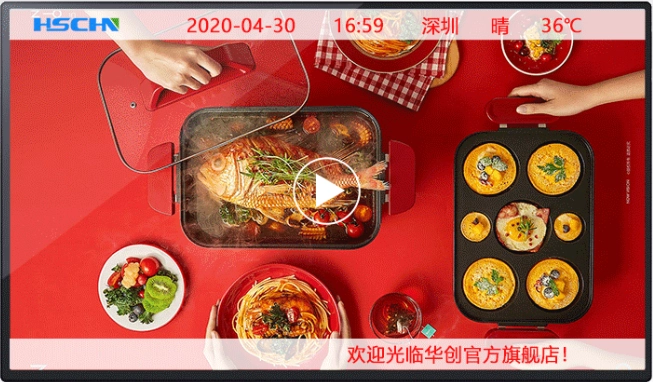
The product supports intelligent split-screen playback, including one-screen, two-screen, three-screen, and multi-screen carousel modes.
Pictures, videos, and text can be arranged in different areas.
A showroom could put a product video in the main section and keep specifications in a smaller area. A public information display could combine a map with written instructions. A commercial display could show promotional material alongside product details.
The layout needs to leave enough room for touch controls if the screen is interactive.
A common mistake with split-screen content is trying to show too much at once. More information does not necessarily help users find what they need.
For touch applications, clear buttons, readable text, and obvious navigation usually matter more than filling every available section of the screen.
What Should Be Considered When Mounting the Screen?
Wall mounting changes the way users approach the display.
The height cannot be chosen only according to the wall dimensions. It also needs to suit the people who will use the screen.
A school has different users from a retail showroom. A public information display may need to accommodate children, adults, and elderly visitors.
The main interactive areas should be within comfortable reach.
Cable routing also needs attention. Power, network, USB, HDMI, or other connections should be planned before the display is mounted.
For larger projects, these details are worth confirming during the initial layout stage rather than after the equipment has arrived.
Where Does This Type of Display Fit Best?
Education
Interactive teaching is one of the more obvious uses.
Teachers can use the large screen for presentations, diagrams, multimedia lessons, and interactive exercises. Students can operate the screen directly when the software supports touch input.
The 55-inch and 65-inch versions can provide a larger working area when several students need to view the same material.
Commercial Industry
Retail stores and showrooms can use touch displays for product catalogs, specifications, demonstrations, and promotional material.
A customer can browse information without waiting for a salesperson to bring up every product detail.
Smart City
Public information systems can use interactive screens for directories, service information, maps, location queries, and other public-facing functions.
Here, simple operation is important because the user may have no training and may only spend a short time at the screen.
What Should Buyers Confirm Before Ordering?
For project customers, the final specification should cover the complete equipment rather than only the screen size.
We normally recommend confirming:
Display
· 42/43, 49/50, 55, or 65 inches
· 1920 × 1080 resolution
· IPS panel
· 178-degree viewing angle
· Brightness ≥350 cd/m²
· Contrast ratio 1200:1
Touch
· Infrared or capacitive
· Required touch points
· Application compatibility
· Expected daily usage
System
· Android or Windows
· Mainboard configuration
· Required ports
· Network requirements
Structure
· Tempered glass
· Wall mounting method
· Installation height
· Cable routing
· Power requirements
The standard power supply is AC110–220V, with maximum power consumption listed at ≤280W.
These specifications become particularly relevant when multiple units are installed together.
A Touchscreen Needs to Match the Job
The most useful touchscreen is not necessarily the one with the longest feature list.
A public information project may need quick menu navigation and a durable front surface. A classroom may need multi-point touch and a larger working area. A showroom may place more importance on image presentation, software compatibility, and interactive product browsing.
The configuration should follow those requirements.
Our Infrared Wall Mounted Touch Screen Display combines a 1920 × 1080P IPS display with optional infrared or capacitive touch, tempered glass, Android or Windows systems, and several screen-size options.
For customers planning an interactive display project, the starting point is usually straightforward: what will users do on the screen, how many people will use it, and where will it be installed?
Once those three points are clear, the choice of touch technology, screen size, operating system, and supporting hardware becomes much easier.
That is also how we approach product configuration at FVASEE—rather than adding functions simply for the specification sheet, we match the display to the application the customer actually needs.